Signing In
AARP Volunteer Scheduler — getting an account and signing in
Good news first: this system has no password. None. There is nothing to invent, nothing to write on a sticky note under the keyboard, and nothing to reset at 10 p.m. the night before an event. Once you have an account, you type your email address, the system mails you a link, and clicking that link signs you in.
There are two separate things here.
Getting your account happens once, and it is not instant: a real person sets up each account, so allow a few business days.
Signing in is what you do every visit after that. It takes about a minute.
Tap a heading below to open it. Tap it again to close it.
Getting your account — one time onlyFor your very first visit · takes a few business days
Step 1: Ask for an account
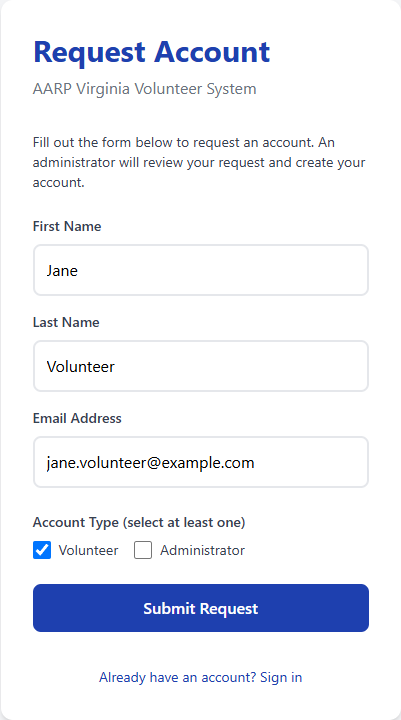
You can’t create your own account here — someone sets it up for you. What you can do is ask. From the front page, follow “Don’t have an account? Request one”, fill in your name and email, tick at least one account type, and press Submit Request.
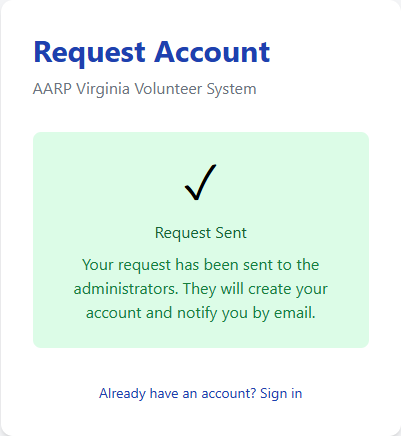
Submit it and you get a receipt on screen. That’s the whole ceremony — there is no status page to refresh and no progress bar to watch.
Use the email address you actually read. Your sign-in links, event reminders, and signup confirmations all go to it.
Step 2: Wait for your welcome email
When your account has been set up, you will get an email welcoming you to the system. That email is how you know your account is ready. Until it arrives, signing in will not work.
You do not need to do anything else while you wait. If you have not received the welcome email after a few business days, check your spam or junk folder, then get in touch with your AARP volunteer coordinator — nobody is offended by a polite nudge.
Got the welcome email? Your account is ready. Open Signing in — every visit below to sign in for the first time.
Signing in — every visitFor when you already have an account · about a minute
Step 1: Ask for a sign-in link
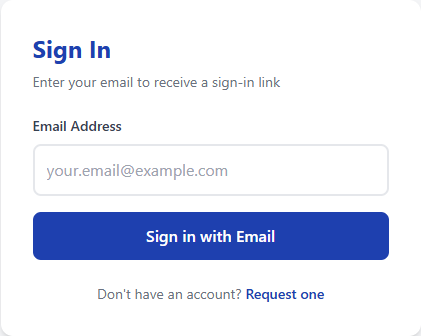
On the system’s front page, type your email address and press Sign in with Email.
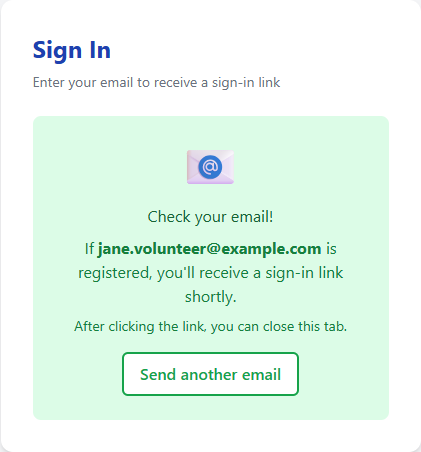
The card turns green and tells you to go check your inbox.
The email can take a minute. Some email providers are slow to deliver. Give it a minute or two. If nothing has arrived after a minute, look in your spam or junk folder, then check the spelling of the address you typed.
Step 2: Open the email and click Sign In
Look for a message titled “Sign in to … Volunteer Scheduler.” It is short, and the only thing in it you need is the blue button.
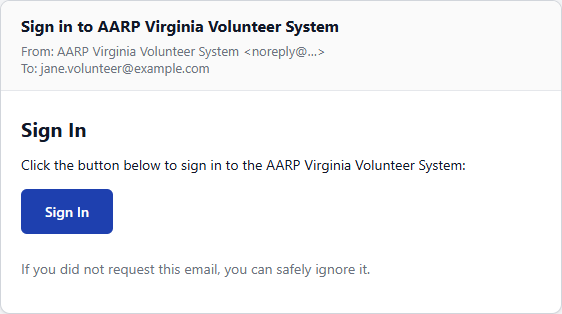
That link is yours alone — don’t forward it. It’s good for one sign-in, and only for a limited time, so use it when it arrives. If it stops working, just ask for a new one.
Step 3: Confirm on the “Complete Your Sign In” page
The button drops you on one more page with — yes — one more button. Check that the address shown is yours, then press Sign In. And you’re in.
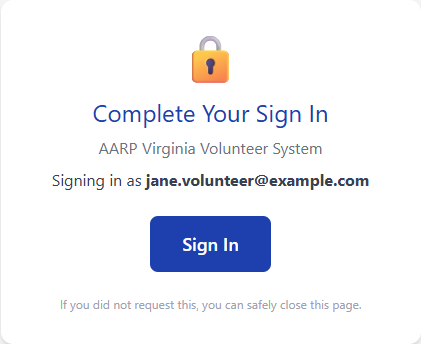
If a spare browser tab is left open afterwards, close it — nothing is broken.
The screenshots in these two panels come from a demonstration site, so your state’s name may appear in place of the one shown.
When it doesn’t go to plan
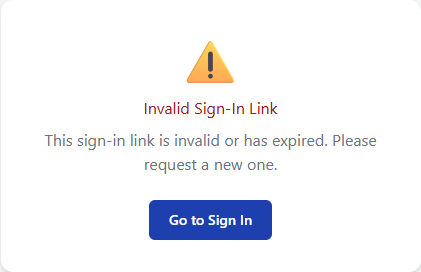
- “Invalid Sign-In Link.” That link can’t be used any more. Go back to the front page and request a fresh one — they’re free.
- No email arrived. Check the spam or junk folder first — it is the culprit more often than anything else. Then check the spelling of your address.
- “Unable to sign in. Please contact an administrator.” Exactly what it says: get in touch with your AARP volunteer coordinator, who can have an administrator sort it out.
- You clicked the link on your phone but you were working on the laptop. The link signs in the device that opens it. Open the email on the machine you want to use.
Signing out
On a shared, library, or borrowed computer, press Sign Out in the top-right corner when you’re finished. Closing the tab is not the same thing.